Splitting VCF files using Python

I recently did a fresh install of Ubuntu 11.10. I forgot to export my contacts from Evolution and was horrified to learn these are not stored in a flat file and the database is not compatible between versions (great work Evolution devs).

Some poking around on the internet led me to a Perl file to that was able to get the data. Then some Python work let me format it correctly as a VCARD (.VCF) file. But when I tried to import it I didn’t get all my contacts. More sleuthing led me to realize that only the first 75 were being imported. I wrote this short Python script to break up my 190-contact VCARD file into parts that had no more than 75 entries. I hope it will help you out too!

#split vcf files

working_dir = '/home/mike/compile/'
input_file = 'final.vcf'
output_seed = 'contacts-part-'
vcards_per_file = 75

with open(working_dir + input_file,'r') as f:
    count = 0
    output_count = 1
    results = []
    for line in f:
        if ("BEGIN:VCARD" in line):
            count += 1
        if (count <= vcards_per_file):
            results.append(line)
        else:
            #output file with stored values
            with open(working_dir + output_seed + str(output_count) + '.vcf','w') as oFile:
                for item in results:
                    oFile.write(item)

            #increment outputfile count
            output_count += 1

            #clear results list and append last read line
            del results[:]
            results.append(line)

            #set counter back to 1
            count = 1
            

    #write the last set of results to a file
    with open(working_dir + output_seed + str(output_count) + '.vcf','w') as oFile:
        for item in results:
            oFile.write(item)

Git Branch and pushing local branches to Github

I’ve been getting better at using Git in smart ways, but recently I did something a bit dumb. Instead of branching my code to port over to a different chip, I just make a copy of it into a directory not under version control. The issue I have now is how to add it to the repository as a separate branch. Since I’m not too far away from where I started, the answer is simple:

I’m going to create a new branch and replace the controlled files with the ones I previously edited. This is done with the following steps:

  1. Clone a clean copy of the repository (if you don’t already have one)
  2. Create the branch
  3. Switch over to the branch (you’ll still be on ‘master’ after creating it)
  4. Make the edits (or just copy the files over in my case)
  5. Commit
  6. Explicitly push the local branch back to remote (if you’re using a remote repository like Github)
git clone git://RepositoryAddressGoesHere
git branch newBranchName
git checkout newBranchName
nano fileToBeModified  #Modify the files any way you wish here
git commit -a -m "Commit Message"
git push origin newBranchName

That’s it. I made a new branch, altered a file, and commited it to that branch, then pushed the change to the remote repository. There’s a lot more about working with branches at the Git Book.

C Programming Language: shorthand

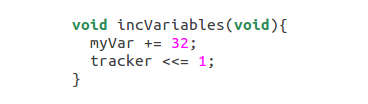
If you’re writing a lot of code you want to use as few keystrokes as possible. After all, aliments like tendonitis and carpal tunnel syndrome are career threatening for professional programmers. That’s way many languages have shorthand syntax to save time and keystrokes. The C language is no different, and I’ll share this quick tip about it after the break.

Continue reading

Python parallel port control


Looking for a really easy way to control your project from a computer? If you have a parallel port which isn’t used you’re in luck. Python has a module that makes it easy to toggle the pins on the parallel port

First install the pyParallel module. It’s in the Ubuntu repositories:

sudo apt-get install python-parallel

To use the module just import it, instantiate an object, then write or read from that object.

import parallel
parPort = parallel.Parallel()
parPort.setData(0x01)

Now, this threw a permission error for me. But a bit of searching led me to find that you need to remove the lp module and insert the ppdev module:

sudo rmmod lp
sudo modprobe ppdev

This module will load again next time you reboot. Consider blacklisting it if you are using automated Python scripts that need parallel port access.

That’s it! Don’t you love Python? Of course there are some additional functions availalbe for this module so check the documentation to see what else can be done.

Git Rebase

It was pointed out to me that I had a typo in my code for the SPI shift register tutorial. I had the definition wrong for the data pin used by SPI (I guess AVR is not too particular about setting MOSI as an output for master SPI mode). Since it is supposed to be a clear example I needed to fix it. But the git repository that I used has a tag to some earlier code as the simple example, then more complex code at the latest revision. I wanted to make the change throughout and for this I decided to use the Rebase command. Here’s the steps I took:

  • Check out a new clone of the repository
  • Do a hard reset to the offending commit
  • Fix the problem and commit it
  • Hard reset back to the most recent version
  • Use the Rebase command to bring that change forward in time
  • Pull from the remote repository (you’ll be told to do this if you try to push first)
  • Push back to the remote repository

Fixing tags

  • You CANNOT move a tag on the remote repository. This is a security feature.
  • Delete the old tag and make a new one at the proper commit.
Take a look at the actual commands after the break.